


Launcher OS™
4.46.45K Reviews
App Specs
- Version
- 6.3.15
- Updated On
- License
- Free
- Downloads
- 100,000,000+
- Developer
- Apps Genz
- Categories
- Personalization
- Platform
- Android, iOS
Screenshots
 Analysis by AppCompare
I approached Launcher OS™ as a way to change how my phone feels to use without changing the phone itself. That is the appeal of this personalization app from Apps Genz: it places the home screen, app drawer, and everyday navigation at the center of the experience. It is free to install, rated for Everyone, and has an average rating of around 4.4 from about 1.6 million ratings. Those figures suggest it has reached a broad audience, but whether it suits you depends more on how much control you want over your screen than on popularity.
Start with the phone you already have
The useful question before installing any launcher is not simply, “Do I want a new theme?” It is, “What feels awkward about my current home screen?” Maybe you keep swiping through pages to find a frequently used app, or your icons and widgets feel visually crowded. I would start by noticing those small annoyances, then use Launcher OS™ to see whether changing the layout makes them easier to manage.
Its OS-inspired styling gives the interface a different visual character from the default launcher, while the customization tools let you decide how far to take that change. You can try a restrained arrangement rather than rebuilding everything at once. That matters because a home screen can look attractive in a preview yet be less convenient when you are reaching for a map, message, or work app in a hurry.
Launcher OS™ was released on May 19, 2020, and its current version is 6.3.6. It runs on Android 8.0 and later, which makes the first practical check simple: confirm your phone meets that requirement before planning a setup around it. The app has passed 50 million installs, but a large install base does not guarantee that its look or controls will match everyone’s habits.
From first setup to a screen that works
I treat a new launcher as a change to the phone’s starting point, not as a reason to redesign everything at once. The useful test is whether the first screen helps me get to my next task with less searching, while still making sense to anyone else who picks up the phone. I’d begin by identifying the small daily friction I want to remove, then move on to a careful setup rather than choosing a look first.
Change the layout in small steps
From the moment I fired up Launcher OS™, I was greeted with a clean, intuitive interface. It promises to transform your home screen and boy, does it deliver! The app is super lightweight, so it won't bog down your device. I was able to download it and get started in a matter of minutes.
When I set up a launcher, I prefer to make one change, use the phone normally, and then decide what needs adjusting. With this app, that means choosing a general look first, then checking whether the app drawer and home screen still make sense for the way you reach your apps. If you change icons, widgets, folders, and shortcuts all at once, it becomes harder to tell which choice actually improved the routine.
Worth Reading Before You Choose

Flipboard Shows What News Apps Must Do Beyond the Feed

Switching to Android Auto Means Rethinking Your Driving Routine

Google Calendar Makes a Crowded Week Easier to Manage

Ludo King Makes the Most of the Minutes Between Plans

Baby Panda World Brings Quick Play to Modern Phones, but Its Game Library Feels Busy

ESPN’s Live Game View Makes Following Close Games Easier
A practical test is to put only the apps you use most often within easy reach, then leave less-used tools in the drawer or in a clearly named folder. That keeps a personalized screen from becoming a collection of decorative icons that takes longer to scan than the original layout. I would also check the screen after adding widgets: a widget is useful when it saves a tap or shows information you genuinely consult, not just because it fills an empty space.
Make personalization serve a routine
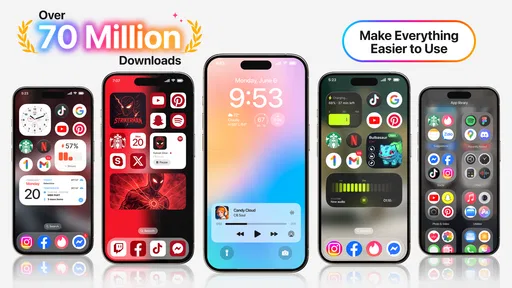
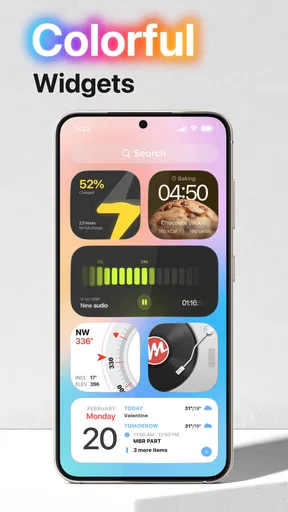
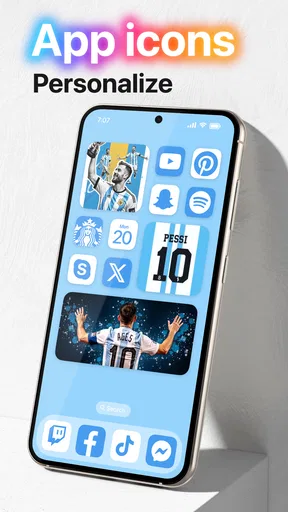
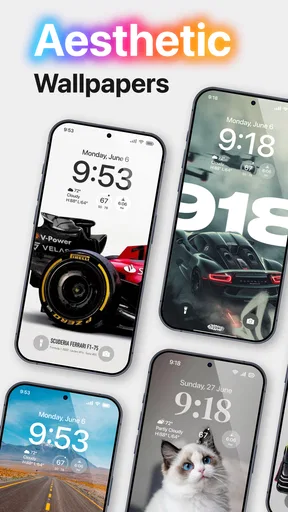
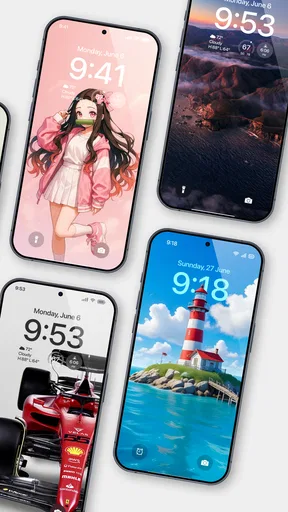
One of the standout features is its incredible customization options. You can tweak just about everything to suit your style. Want circular icons? Check. Fancy a minimalist look? You got it. The app provides a ton of themes and widgets that you can mix and match. I spent a good chunk of time just playing around with different looks. You can even alter the app drawer and notification settings to make them just right.
The trade-off I keep in mind is visual consistency versus quick recognition. A coordinated theme can make the phone feel more composed, but if every icon looks unfamiliar, finding an app may take an extra moment. I would keep the tools I need under pressure—such as a calling or navigation app—easy to identify, even if the rest of the screen follows a new style. Personalization works best when it improves the glance-and-tap part of using a phone, not only its appearance.
There is also a difference between setting up a screen for a quiet weekend and setting one up for a busy day. For a work-focused arrangement, I would keep communication and calendar tools together and avoid placing entertainment shortcuts where I might tap them by habit. For a more relaxed setup, a few media shortcuts or a larger widget may be worth the space. The ability to mix shortcuts, widgets, and folders is most useful when each item has a clear job.
Use search and gestures as handoffs
Now, let's talk performance. I was a bit skeptical at first, thinking all these customizations might slow down my phone. But surprisingly, it runs smoothly. Whether you have a high-end device or something more budget-friendly, Launcher OS™ adapts beautifully. It's optimized to enhance your phone's performance rather than hinder it.
As for usability, it's pretty straightforward. Even if you're new to launchers, the app guides you through the setup process. The learning curve is minimal, which is a big plus in my book.
Still, changing the launcher changes the starting point for opening apps, not the apps themselves. A gesture or search can help you get to the next task, but once you hand off to a messaging, banking, or maps app, that app’s own layout and behavior take over. I would test the gestures you intend to use in ordinary situations and make sure they feel natural before relying on them while walking or multitasking.
That handoff is especially relevant if you share your phone with someone who is used to the original home screen. A personalized layout may be obvious to you but less so to a family member trying to open a familiar app. Keeping essential apps in predictable places, and using straightforward folder names, makes the setup easier for another person to navigate without undoing your choices.
Everyday extras and the real result
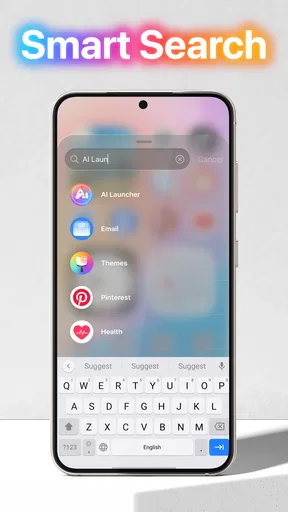
But wait, there’s more! Launcher OS™ includes some nifty features that I found quite handy. There's a smart search option that lets you find apps and contacts quickly. I also loved the gesture controls, which make navigating the phone as smooth as butter. Plus, the battery saver feature is a lifesaver, especially when you’re on the go.
For those who love personalization, the app lets you pack your home screen with shortcuts and widgets. You can even create folders to keep everything organized.
A realistic routine shows where these extras can help. Imagine leaving home in a hurry: you want to open a navigation app, find a contact, and then switch to a message without hunting through several screens. A carefully arranged home screen can put the first app in reach, while search can provide another route when you do not remember where a shortcut lives. Gestures may make familiar navigation quicker once they become habit, but I would not depend on a gesture until I have tested it enough to use it without thinking.
One small but useful setup habit is to treat search as a backup, not a replacement for organization. If you constantly search for the same app, that is a clue it belongs on the home screen or in a more obvious folder. The reverse is true too: if a shortcut stays untouched, it may be taking up space better used by something you actually open every day. This kind of occasional tidy-up keeps the visual makeover connected to real use.
For a phone that feels cluttered, I would judge the result by whether common tasks take less effort, not by how dramatic the first screen looks. If you can find your regular apps quickly and the arrangement still feels comfortable after a few days, the customization is doing useful work. If you spend more time adjusting themes than using the phone, it may be better to settle on a simple layout and stop there.
Where the flow can break
Okay, so is everything perfect? Not quite. While the app itself is fantastic, I did notice that some themes are locked behind a paywall. If you're someone who loves going all out with themes, you might find this a little frustrating. However, the free options are still pretty amazing, so it’s not a total dealbreaker.
Launcher OS™ is free, with in-app purchases ranging from $0.99 to $79.99 per item. I would explore the free choices first and decide what is missing before paying for anything. The price range is wide enough that it is sensible to check the cost of a particular item in the app rather than assuming every theme or extra is a small purchase. If you mainly want a fresh layout, there is no reason to treat paid themes as necessary.
Another minor gripe is that the app occasionally pushes notifications about updates and new themes. They’re not too frequent, but it’s something to keep in mind if you prefer a quiet phone.
This is also where a launcher may not be the right answer. If you are already happy with the default home screen and only want a different wallpaper, changing launchers may be more adjustment than you need. If your priority is deep control over how every part of Android behaves, a launcher’s home-screen changes may not cover that broader goal. And if you dislike learning new gestures or rebuilding your layout, the familiar default can be the more comfortable choice.
Compared with sticking to the phone’s usual launcher, Launcher OS™ offers a more pronounced visual change and extra ways to arrange the screen, but it asks you to adapt to a different setup. Compared with choosing another launcher, the decision comes down to the style and controls you prefer; the category is broad, and a simpler alternative may suit someone who wants fewer choices. I would choose based on the actual home-screen workflow you want, rather than installing several launchers at once and judging them by their first impression.
Who will get the most from it
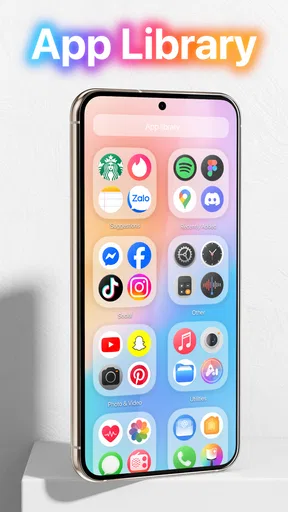
I see this as a good fit for someone who wants an OS-inspired appearance, enjoys rearranging icons and widgets, and is willing to spend a little time making the result practical. It is also approachable if you have never tried a launcher: you can begin with a modest visual change and learn the layout as you go. People who depend on a crowded home screen may appreciate being able to sort shortcuts into folders instead of adding more pages.
I would be more cautious if you strongly prefer an untouched default setup, find interface changes distracting, or expect every theme to be included at no cost. Someone who uses a phone mainly for a few fixed tasks may gain little from extensive customization. The best reason to install it is a specific problem you want to solve—such as a screen that is hard to scan—not the assumption that more options automatically mean a better phone.
Final Thoughts
All in all, Launcher OS™ is a solid choice for anyone looking to spice up their smartphone experience. It offers a ton of customization, improves usability, and enhances performance without any major downsides. Whether you’re a customization junkie or just want to freshen things up a bit, this launcher is worth a try.
So, if you're ready to give your phone a new look and feel, you can find Launcher OS™ in the app store. Go ahead, give it a whirl and see how it transforms your device!
My recommendation is to approach it as a small workflow experiment: set up the screen around your actual day, give the arrangement time to prove itself, and keep only the changes that make common actions easier. That is a more useful test than chasing a perfect theme. With an Everyone content rating and broad Android compatibility from version 8.0 onward, it is easy for many people to consider, but the right choice still comes down to whether its look and setup suit your habits.
Pros
- Customizable interface enhances user experience.
- Lightweight
- doesn't slow down device performance.
- Frequent updates keep features fresh and secure.
- User-friendly design makes navigation intuitive.
- Wide range of themes for personalization.
Cons
- Limited widget support compared to competitors.
- Some features require in-app purchases.
- Occasional ads can disrupt user experience.
- Compatibility issues on older devices.
- Limited gesture options for advanced users.
FAQs for Launcher OS™
What is Launcher OS™ and how does it enhance my device?
Launcher OS™ is a customizable home screen launcher designed to enhance the user interface and overall experience of your Android or iOS device. It provides features like custom icons, widgets, and themes, allowing users to personalize their device's appearance and improve functionality. It aims to offer a seamless and user-friendly experience.
Is Launcher OS™ compatible with all devices?
Launcher OS™ is designed to be compatible with the majority of Android and iOS devices. However, compatibility may vary based on your device's operating system version and specifications. It's recommended to check the app's description on the app store for specific requirements and supported devices before downloading.
Does Launcher OS™ affect battery life or device performance?
Launcher OS™ is optimized to ensure minimal impact on battery life and device performance. However, as with any app that runs continuously in the background, some users may notice slight changes in battery usage or performance. Adjusting settings and limiting background processes can help mitigate any potential impact.
How customizable is Launcher OS™?
Launcher OS™ offers extensive customization options, including a variety of themes, icon packs, and widgets. Users can adjust layouts, animations, and transitions to suit their preferences. The app also supports custom gestures and shortcuts, making it a powerful tool for those who want to tailor their device's interface extensively.
Is Launcher OS™ free, or does it require a purchase?
Launcher OS™ is available as a free download, with essential features accessible to all users. However, there may be in-app purchases or a premium version that unlocks additional features and customization options. Users can choose to upgrade for an enhanced experience, but the basic functionality remains free.


